renomakani.com

renomakani.com
renomakani.com
Showing posts with label HERO3Plus. Show all posts

Monday, March 31

The Blackout Housing for GoPro HERO3 


Yes finally woot woot! The athletes & media team have been pushing for a more desecrate housing and I'm happy to say its now available :)

The Blackout Housing from GoPro keeps a low profile thanks to its matte black finish. It’s perfect for special ops filming with your GoPro  and capturing footage without drawing attention to the camera. The included LCD concealment stickers help eliminate light reflection from the housing’s LCD window. Waterproof to 131’/40m. Includes Standard and Skeleton Backdoors.Non-reflective, matte black finish ensures low visibilityPerfect for special ops filming or capturing footage without drawing attention to the cameraIncludes LCD concealment stickers to eliminate light reflection from the LCD windowWaterproof to 131’/40m

Check out GoPro and order yours today! Aloha Reno Makani


Take a moment and be one of the first to sign up for exclusive insights, media, VIP events and giveaways at http://www.renomakani.com/vip 

More Tips from a PRO check out the links below


Follow, Like, Subscribe and Share MT social media

Instagram  https://www.instagram.com/ModernTechnocracy 
Facebook  https://www.facebook.com/ModernTechnocracy
Twitter      https://twitter.com/ModTechnocracy
YouTube   https://www.youtube.com/ModernTechnocracy
Google+    https://plus.google.com/+ModernTechnocracy
Snapchat   https://www.snapchat.com/add/ModTechnocracy 


Thursday, February 6

Tip from a PRO: Connect GoPro HERO3 Camera and Wi-Fi Remote

Connect GoPro HERO3 Camera and Wi-Fi Remote

If you can't control your HERO3 camera with your Wi-Fi Remote, try pairing the two devices.  In most cases, this corrects the issue.  
Here’s how to pair your HERO3 Camera and Wi-Fi Remote:

To get started, make sure your camera and remote have a full charge and are powered OFF

Part A - Get your HERO3 camera ready for pairing mode

1 - Power ON the HERO3 camera.
2 - Press the Wi-Fi button on the left side of the camera with the lens facing you. This turns on Wifi. You’ll see a blue LED blink every couple of seconds to show that you camera’s Wi-Fi is turned on.
3 - Now the blue LED is blinking, press the Wi-Fi button one more time to show the Wi-Fi menu on the camera’s front LCD screen. Now that you’re in the Wi-Fi menu, you need to select some settings. To navigate the menu, use the camera’s front (Power) button to highlight menu options. Use the camera’s top (Shutter) button to make selections.
4 - In the Wi-Fi menu, press the camera’s front button until “Wi-Fi RC” is highlighted.
5 - Now that it’s highlighted, you want to select it. Press the camera’s top button to select “Wi-Fi RC”.
6 - On the next screen you’ll have some options. One of them is “New”. Press the front button until “New” is highlighted.
7 - Now set your camera aside and pick up the remote.

Part B - Remote pairing steps

1 - With the remote powered OFF, press and hold the red Shutter button on the remote.
2 - While continuing to hold the red button, press the white Power button once briefly. The remote will power on and show two arrows moving towards each other. You can let go of the red button at this time. Now the remote is in pairing mode.
3 -  Put down your remote and pick up the camera again.

Part C - Finish pairing the WiFi Remote and HERO3 camera

1 - "New" should still be highlighted on the camera.  Press the top Shutter button on your camera to select "New".
2 - If you see “Detach current remote?” Highlight and select “Yes”. After that, you should see two arrows moving towards each other on the camera’s screen. This means that the camera is in pairing mode. Note – the camera is in pairing mode only when its screen shows the two arrows moving towards each other.
3 - At this point, the camera and remote should both show arrows moving towards each other.  After one minute or less, the camera and remote should each show a checkbox on their screens.
4 - If the Remote asks you to pair another camera, press the white button to highlight "No", then press the red button to select it or if needed set up to 50 HERO3 cameras.
5 - If the remote shows a radiating Wi-Fi signal after the camera shows a checkbox, press the red button on the remote. This should make the Remote’s LCD screen mirror the camera’s front LCD screen, indicating that pairing was successful.

TroubleshootingIf the remote and camera are not able to connect, try these steps:

  1. Redo the software update on the camera and rename the Wi-Fi network and password.
  2. Try to pair the remote to the camera as a 'new' remote (i.e. select "Wi-Fi RC > New" in the camera's Wi-Fi menu).
  3. If pairing doesn't work, try to connect to the camera's Wi-Fi network with a phone/tablet. You'll need to switch the camera to "GoPro App" mode or "Phone/Tablet" mode in the camera's Wi-Fi menu first.

Thanks for tuning into my blog. 
Please show your support and Follow me on Instagram here > @RenoMakani  
Check out my other media channels - Surfing Is The Key To My Life | Reno Makani | Official Website www.renomakani.com

Take a moment and be one of the first to sign up for exclusive insights, media, VIP events and giveaways at http://www.renomakani.com/vip 

More Tips from a PRO check out the links below


Follow, Like, Subscribe and Share MT social media

Instagram  https://www.instagram.com/ModernTechnocracy 
Facebook  https://www.facebook.com/ModernTechnocracy
Twitter      https://twitter.com/ModTechnocracy
YouTube   https://www.youtube.com/ModernTechnocracy
Google+    https://plus.google.com/+ModernTechnocracy
Snapchat   https://www.snapchat.com/add/ModTechnocracy 


Tuesday, October 1

Tip from a PRO: GoPro HERO3 HERO4 Best Practices


GoPro HERO3+ HERO4 Best Practices 

By GoPro Ambassador Professional Surfer Reno Makani  

Take a moment and be one of the first to sign up for exclusive insights, media, VIP events and giveaways at http://www.renomakani.com/vip

Filming Action Sports like Surfing, Snowboarding, Skateboarding, Moto, Drifting, MTB or
any high speed action I use 960p @ 120 fps or or 1080p @ 120 fps. For ultra wide clean crisp shots use 1440p @ 48-80 fps and HERO4 Silver & HERO3+ Black users try 1080p 60 fps or 960p @ 100 fps. For professional settings turn ON Protune - I like to use these configured settings for during the day - Spot Meter Off - Unless I'm in a tight dark area pointing the camera into a brighter setting. Protune On, White Balance AUTO, Color GoPro, ISO Limit 400, Sharpness LOW and EV Comp N/A. Protune On makes Neutral Color for more flexibility during post production. Able to now Record video in cinema quality 24 fps.    

(Note) HERO3 Silver users I recommend 720p @ 60 fps for high speed action.
To sum it up it depends on what your doing in post production. If seamless slow motion is what you want, I recommend filming in higher fps resulting in smoother slow motion.
(Note) HERO4 Black users if you really want to get the best quality try 4K @ 30 fps it will blow your mind :) but remember you need a fast processor and 4K TV/Monitor.


On location in Mexico > Time-Lapse 0.5 Photo GoPro


(Note) Learn to use GoPro Studio 2.5.3 to convert/transcode clips (720p, 960p & 1440p) to 1080p. If your just wanting to film B-roll use 1080p @ 60fps or 1080p @ 30 fps. HERO3+ Black users try 1080p 48 fps SuperView On if your feeling a little lazy haha)  

I recommend using New GoPro Studio 2.5.3 software to convert/transcode 720p, 960p & 1440p to 1080p HD video. You can also use GoPro Studio 2.5.3 for amazing photography time-lapse's.

Better yet GoPro Studio is FREE. Download your copy > http://bit.ly/GoPro_Studio_2

(Note) Functions include • Frame-rate adjust for slow motion • Exposure • Contrast • Saturation • Color Temperature • Image flip rotation  • Slow Motion • Video Templates • Frame Re-size (Up-res/Down-res) 

(Note) Your gonna have to play with the Framing Controls like Zoom, Horizontal Position, Vert Pos, Rotation, H.Zoom, H.Dynamic, Cropping and zoom etc in order to get the ratio perfect.


Time-Lapse of a sunrise or sunset I will usually capture one photo every 2 seconds (30 photos per 1 minute)

(Note) When shooting faster moving abjects you will want to speed up the Time-Lapse to 1 photo every sec (60 photos in 1 minute) 


Time-Lapse 1 photo every 2 seconds > Photo GoPro


Action Shots with Time-Lapse. If I don't have access to my hands or remote I use Time-Lapse 1 photo every 0.5 seconds. (120 photos in 1 minute)

(Note) From time to time I use Burst Mode (HERO4) at 30 fps 12 MP photos at 1-3 second intervals for ultimate detail and a streamline sequence.


Burst Mode 30 photos in 2 seconds (Remote on my wrist) > Photo GoPro

 San Diego Freeway 8 looking east (Night Lapse Mode)  Photo GoPro HERO4 Black

Riding my Fiik Electric Skateboard at SDSU (Night Lapse) Photo GoPro HERO4 Black

Night Photo - Long Exposure
Shutter - 2 Seconds
Spot Meter - Off
Protune - On
White Balance - 3000K
Color - GoPro Color
ISO Limit - 100 or 200

Sharpness - Low, Medium or High depending how bright the shot is.
Exposure time on Night Photo is set to auto by default. In auto you can expose from 1/4096th of a second up to 2 seconds. This means you can use this mode to shoot regular photos as well! More customized photos, manually set the exposure to 2 sec, 5, 10, 20 or even 30 sec. Use with the App remote or WiFi remote. This mode can be great for long exposure video creation, stop-motion and mental low light shots from just about all scenes imagined. 


Post Production - (Video) 


I use Final Cut Pro X ($299) but you can use iMovie  (FREE with MAC) 
and new  GoPro Studio 2.5.3 use iOS Apps like iMovie, Splice, iMotionHD and SquaredyV.

(Note) Watch my last FCP production (GoPro Surfing China) with Teammate Jamie Sterling (Video Below) This video was my second GoPro video of the day to be featured.


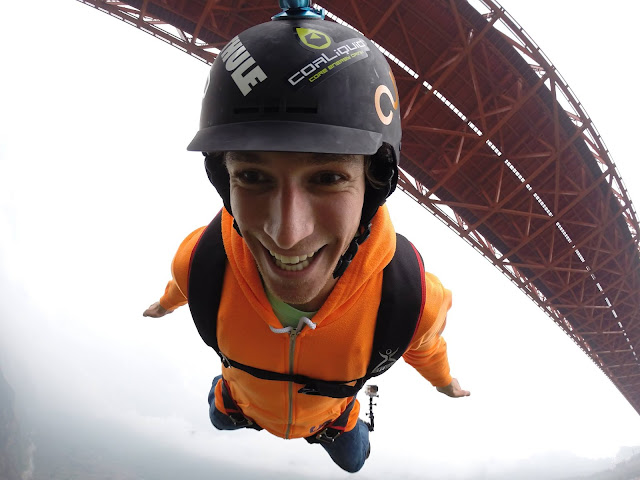
Here's another photo that was shared on GoPro social media of Jamie Starling and I.


Post Production MAC - (Photography) 


I recommend Photo Shop CC and Adobe Light Room (FREE Trials Available for PS & LR) iPhoto (FREE) works decent and is great for beginners. 

(Note) iOS iPhone Apps I like to use are GoProApp, Light Room Mobile (Great way to sync photos from your MAC to your iPhone) DropBox Snapseed, Camera+, Squaready Pro, Squaready V, JusGram, Repost, PS Express, PicPlayPost, Lensflair, iMovie, iMotionHD, ColorSplash, LetterFX, PhotoCube, VersaGram, PhotoWizard, TextMask, Phonto and iWaterMark to name a few.


Time-Lapse 1 photo every 0.5 seconds > Photo GoPro

Other Info -

Battery life
One of the weakest areas of the GoPro HERO3. It’s due to the intense processing power required to run all those high resolutions and frame rates. The GoPro HERO3 is very small so there’s no more room for larger battery power. Decreasing the power supply we now have WiFi built in. Here is a diagram that will help you understand how long you will be able to capture media with your GoPro HERO3. Have not tested battery life for the new HERO4


Stand-By Mode
Kicks in after the camera has been idle in any state (except recording) after 5 minutes.  Once it’s in stand-by mode you won’t see anything different on the screen. If you press a button to record you’ll notice there’s a 1 second delay between pressing the button and the camera responding. (Note) if you’re in photo mode and you’re waiting more than 5 minutes to capture a moment!).  If you’ve ever wondered why there’s been a delay – that’s why!  Stand-by mode is amazing for when the camera is accidentally turns on. GoPro did some recording tests and the camera ran on stand-by mode (waiting to film) for 6 hours before draining the battery supply. I always recommend setting your GoPro to turn off in 120 seconds. Have not tested Stand-ByMode battery life for the new HERO4.


Professional Techniques - 

Learn to use the Wifi Remote. This will result in saving time and capturing shots remotely. 

Learn to use the GoPro App. I use this religiously to change settings and calibrate my view of whats in frame. I also transfer media back to my iPad or iPhone. 

(Note) Last thing you want to do is go out and capture amazing content then later find out that you or your object was not within frame. 

(Note) Be sure you turn off WiFi function when your done unless your using remote or App as it will drain your battery quite fast.

Night Photo - Long Exposure
Shutter - 2 Seconds
Spot Meter - Off
Protune - On
White Balance - 3000K
Color - GoPro Color
ISO Limit - 100 or 200
Sharpness - Low, Medium or High depending how bright the shot is.


Thanks for tuning into my network. I'm happy to add value and share my GoPro knowledge as 2014 will mark 9 years since I first experimented Nicholas Woodmans original GoPro Hero 35mm wrist camera and going on 7 years since religiously working with GoPro on a professional level adding value and putting cameras in places that have yet to be seen. 

Take a moment next time your on your PC or MAC and link up with my Facebook Page. If you want to help support my work even farther on the right side you will see a box that says "Invite Your Friends to Like this Page" Feel free to down the list and invite your peers and the people by checking the box that have similar passions and interest such as GoPro, photography and cinematography. This will help me reach people who share similar passions and like minded interests.

I would also like to thank Nicholas, Justin, Pilar, Andie and the entire GoProOG crew for all their continued support. Looking forward to the future.
"I'm just warming up" GoPro Be A HERO

If your thinking how could you actually be a part of GoPro team then my advice is to apply for sponsorship opportunities at GoPro.com/Sponsorship


"Surfing Is The Key To My Life" | Reno Makani | Official Website www.renomakani.com

Take a moment and be one of the first to sign up for exclusive insights, media, VIP events and giveaways at http://www.renomakani.com/vip


Follow me on my social media channels for more GoPro and other topics that will surely motivate, help & inspire you!


 https://www.facebook.com/ModernTechnocracy/


Follow, Like, Subscribe and Share MT social media


Monday, September 30

GoPro HERO3+


New GoPro HERO3+ is LIVE! Introducing the smallest, lightest most powerful GoPro yet. 
Click this link for more insight. Link GoPro


 Smaller, Lighter, Mightier Still. Link>>>  GoPro

 The world of cinematography & photography just got better! Link>>> GoPro

Smallest Yet! Link>>>  GoPro


 SuperView! Link>>>  GoPro

 Less Distortion! Link>>>  GoPro
 Better Audio! Link>>> GoPro

4X Faster WiFi! Link>>>  GoPro

Here are some action shots of me and some of my friends (Professional Athletes) in action!
All photos powered by GoPro HERO3

 Reno Makani

 Bucky Lasek

 Reno Makani

Jamie Sterling

Chad Kagy

Reno Makani

 Shon Bollock

Matthias Giraud

 Matthias Giraud

 Ben Brown

 Reno Makani

 Ben Brown

 Reno Makani

 Reno Makani

 Reno Makani

 Reno Makani

 Jamie Sterling


To all the kids, fans, friends and parents GoPro will be the most requested gift this Christmas so order yours today before they sell out!  
Happy Shopping :) Aloha Reno Makani